
Products and stock
Save what you sell once, then pick it on every invoice. Stock goes down as you sell and up as you buy.
#The product list
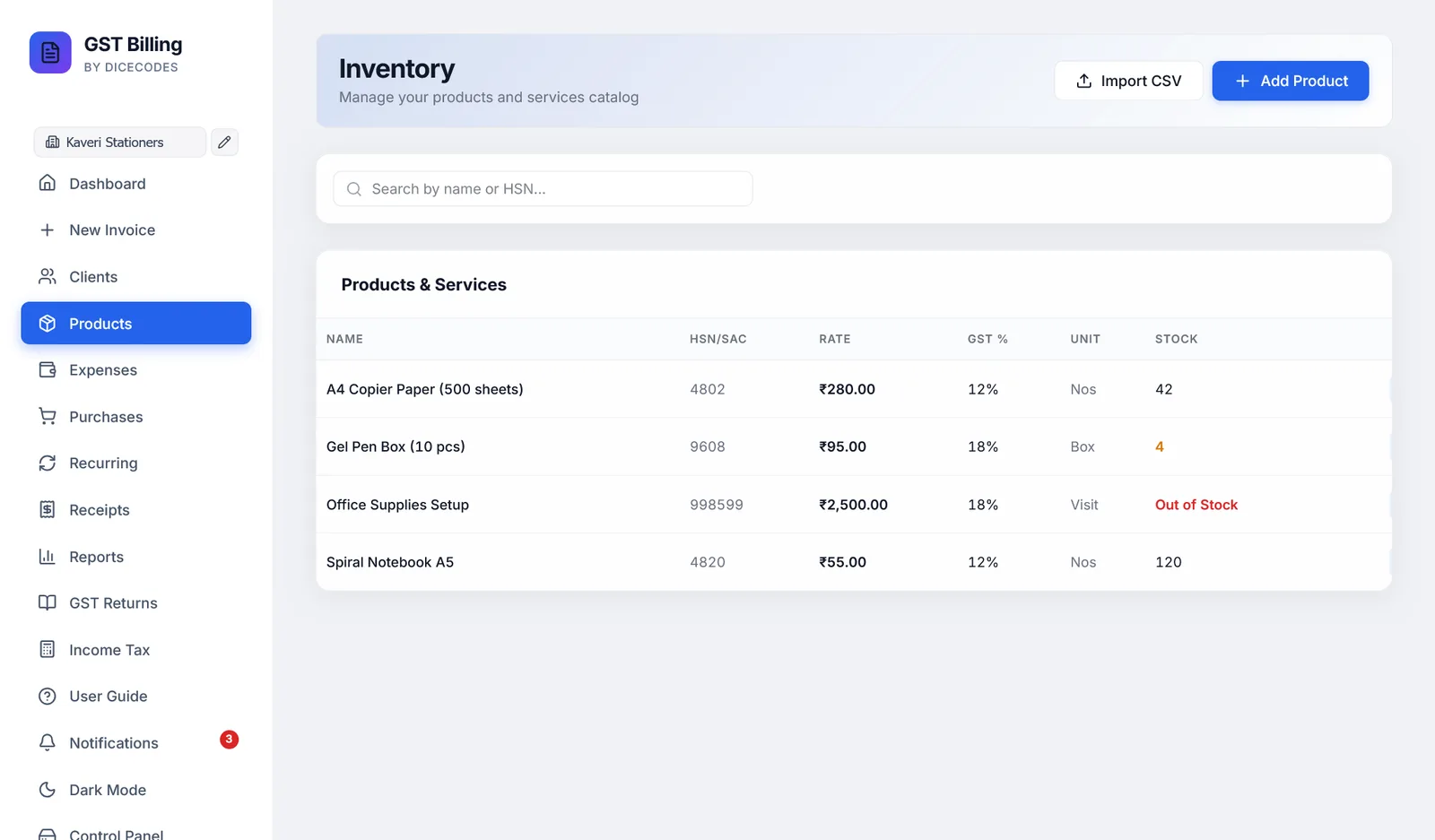
Products in the sidebar opens your catalogue. The table shows name, HSN/SAC, rate, GST %, unit and stock. Point at a name to see its description. Search by name or HSN.
#Adding a product or service
| Field | What to know |
|---|---|
| Product / Service Name | Required |
| HSN / SAC Code | HSN for goods, SAC for services |
| Purchase Price | What you pay the supplier. Filled in on new purchase bills. |
| Selling Price | What you charge. Filled in on new invoices, and shown as the rate in the list. |
| GST % | Type the rate, such as 18 |
| Unit | Pcs to start, or any unit from the list, including your own custom units |
| Stock Quantity | How many you have now |
| Description | For your own reference |
Deleting a product does not change invoices that used it.
#Changing many products at once
Bulk edit turns the list into a grid you can type in: name, HSN/SAC, purchase price, selling price, GST %, unit and stock. Changed rows are highlighted. Save changes saves them all in one go; Cancel drops them. Search first to edit only some products.
A product needs a name, and GST % must be 0 to 100; if a row breaks a rule, nothing is saved and you are told which product to fix.
Print / PDF, Excel and CSV above the list save the products shown, with prices, GST and stock.
#How stock is counted
- Selling: saving a Tax Invoice, Bill of Supply, Composition bill or Delivery Challan takes the quantity out, for rows picked from your products. Change the quantity later and save, and only the difference moves.
- Returns: a Credit Note puts the quantity back.
- Quotations and proformas move no stock. The invoice you convert them into does.
- Buying: saving a purchase bill adds the quantity in, and adds any new item to your products.
- Cancelling an invoice puts its stock back; un-cancelling takes it out again.
Out of Stock shows in red at zero or below. Purchases and deletions never take stock below zero; selling more than you have does, so you notice.
#Low-stock alerts
A product at or below your threshold shows its stock in amber here, is listed on the Dashboard, and adds to the notification bell. The threshold is 5 to start; change it, or turn alerts off, in Settings. It is one threshold for every product.
#Importing products from a spreadsheet
Import CSV loads a price list. The first row must name the columns:
| Column heading | Holds |
|---|---|
name (or product, product name) | Required |
hsn (or hsn code, sac) | HSN or SAC code |
rate (or price) | Selling price |
gst% (or tax%, taxpercent, tax) | GST rate, such as 18. Note: no space before the %. |
unit | Nos if left out |
stock (or quantity) | Opening stock |
description | Optional |
name,hsn,rate,gst%,unit,stock
A4 Paper Ream,4802,280,12,Nos,50
Website Maintenance,998314,5000,18,Month,0
Products you already have (same name) are skipped, so importing the same file twice is safe.