What Open Migration does
Open Migration copies a complete WordPress site — database, themes, plugins, uploads —
into a single .zip archive, and restores that archive onto any other
WordPress install.
Both the export and the import run in small batches over AJAX. Nothing is held in memory all at once, and no single request runs long enough to time out, so multi-gigabyte sites migrate successfully on ordinary shared hosting.
Restoring onto a brand new WordPress install
You do not have to prepare the destination. Install WordPress, install this plugin, upload the archive, and the differences are worked out for you:
- Site URL — every reference to the old domain is rewritten, including inside PHP-serialised option values, JSON-escaped block markup, URL-encoded links and protocol-relative references.
- Server paths — absolute paths stored by page builders and cache plugins are updated to the new document root.
- Table prefix — if the old site used
wp_abc_and the new one useswp_, every table, option name and user meta key is converted. - Serialised data — values are unserialised, replaced and re-serialised so string length prefixes stay correct. A naive find-and-replace corrupts these.
A free alternative to paid WordPress migration plugins
Most WordPress migration plugins are free until your site grows. The moment an import exceeds a certain size, or you want a direct server-to-server transfer, you are asked to buy an extension. Open Migration includes those capabilities in the free plugin.
| Capability | Open Migration | Typical freemium migration plugin |
|---|---|---|
| Import file size limit | No limit, included | Capped, lifted by a paid extension |
| Direct site-to-site transfer | Included | Paid version |
| Automatic URL replacement | Included | Usually included |
| Table prefix conversion | Included | Varies |
| Change domain after DNS switch | Included, with a DNS safety check | Manual search & replace |
| Account or sign-up required | Never | Often |
| Data sent to a third party | None | Varies |
| Scheduled backups to cloud storage | Not offered | Varies; some include it free |
| Licence | GPLv2, open source | Proprietary core |
Looking for a free alternative to a size-capped migration plugin, a way to import a large WordPress backup without buying an extension, or a plugin that will move a site from staging to live without breaking serialised data? That is what this is for.
To be even-handed: Open Migration does one job. It does not do scheduled backups or cloud storage, and some other plugins include those in their free tier. If you want automated nightly backups to Google Drive, use one of those instead — or alongside this.
Requirements
- WordPress 5.6 or newer
- PHP 7.2 or newer with the ZipArchive extension enabled
- Enough free disk space for the archive alongside the site it copies
- A single-site install — multisite networks are detected and refused rather than partially migrated
The Export tab runs a server check before you start and tells you if anything is missing, so you find out up front rather than halfway through a large export.
Installing the plugin
- Install from WordPress.org In WordPress, go to Plugins → Add New and search for Open Migration Unlimited Site Transfer — search the full name, since “open migration” on its own returns the larger migration plugins first. Click Install Now. This is the recommended route because it gives you automatic updates. You can also download it from the plugin directory and use Plugins → Add New → Upload Plugin instead.
- Activate it Open Migration appears in the admin sidebar.
- Install it on both sites The plugin is needed on the site you are moving from and the site you are moving to.
Exporting a WordPress site
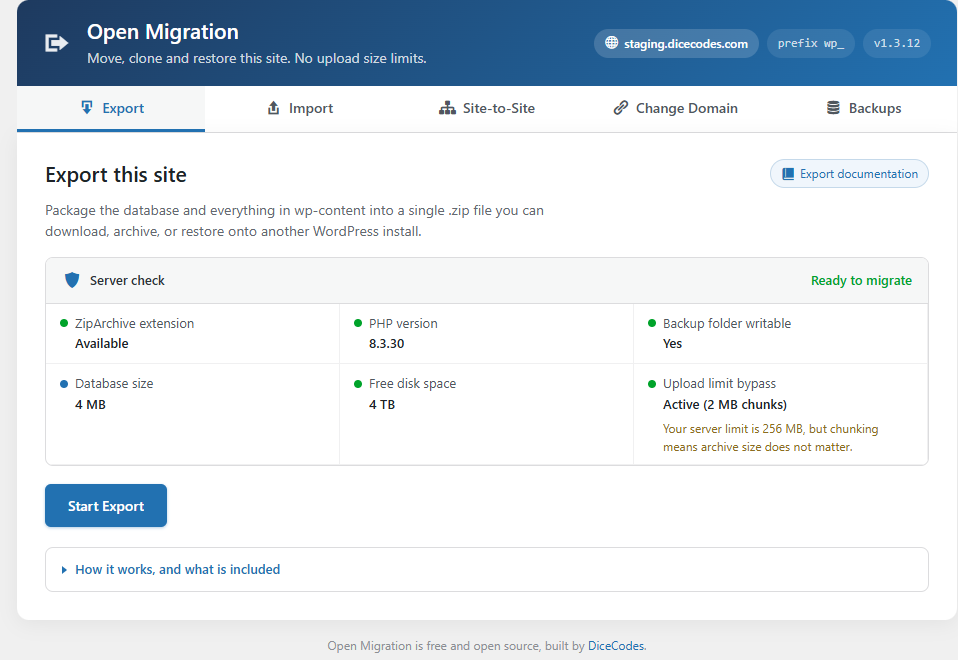
- Open the Export tab and check the server report It confirms ZipArchive is available, the backup folder is writable, and there is enough free disk space.
- Click Start Export The database is dumped and files are zipped in small batches, so the request never times out. Progress shows which file is being packaged.
- Download the archive It also stays on the server under the Backups tab until you delete it.
What is included in the backup
| Included | Not included |
|---|---|
| All database tables for this site's prefix | wp-config.php and your database password |
| Themes and plugins | WordPress core files |
| Uploads and the media library | Cache, upgrade and transient data |
| Site URL, server path and table prefix, for automatic conversion | Other plugins' backup folders |
Because wp-config.php is never included or overwritten, the destination keeps
its own database credentials and security keys. That is what makes restoring onto a fresh
install safe.
Importing onto a new WordPress install
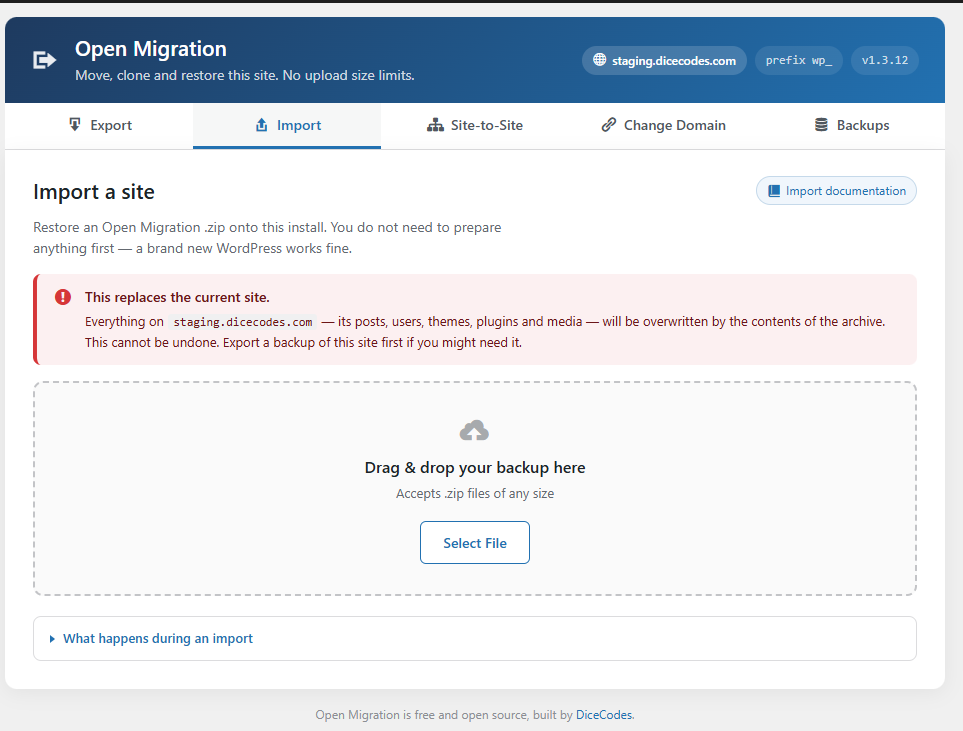
An import replaces the destination site. Its posts, users, themes, plugins and media are overwritten by the contents of the archive, and it cannot be undone. Export a backup of the destination first if you might need it.
- Add the archive
Drag the
.ziponto the upload area, or click Select File. It is uploaded in small chunks, so your host's upload limit does not apply. - The restore runs automatically Files are extracted, the database is restored, and then the old site URL, server path and table prefix are converted to match this install.
- Sign in with the original site's account The archive brings its own users, so your current login stops working.
What to do after an import
- Log in using the original site's username and password.
- Open Settings → Permalinks and click Save Changes once, to rebuild the URL rules.
- Visit the front page and check that images and links load.
- Clear any caching plugin or server cache.
- Delete the leftover backup from the Backups tab once you are happy.
If your account exists on both sites with administrator rights, the plugin signs you back in automatically and you can skip step 1.
Migrating WordPress before you switch DNS
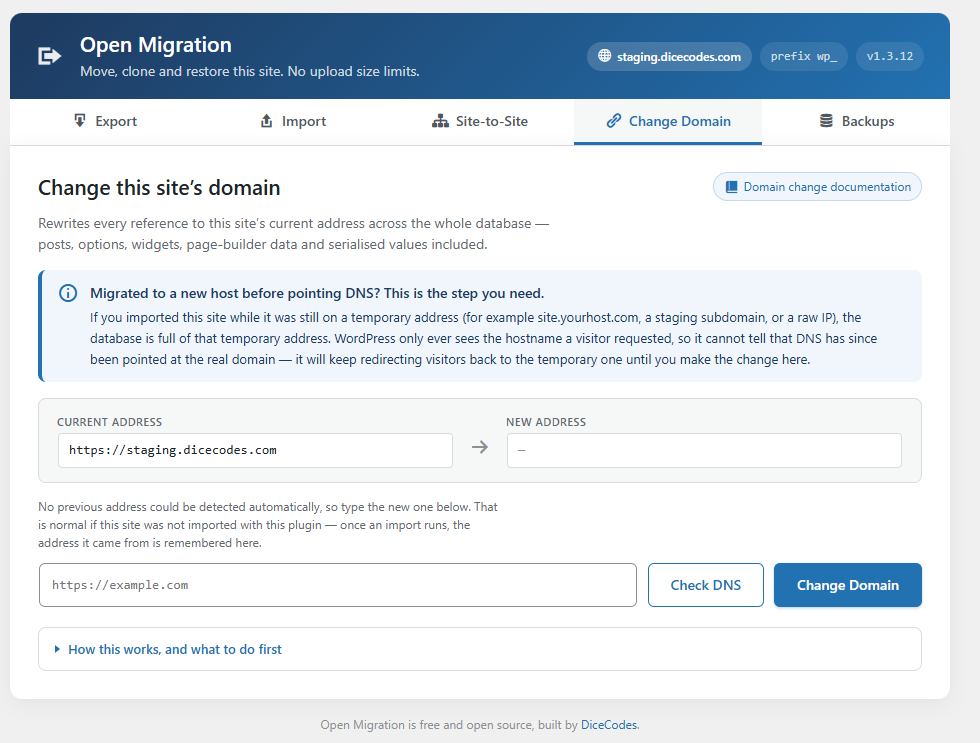
Most real migrations happen while the domain still points at the old host, so you work on
the new server through a temporary address — site.yourhost.com, a staging
subdomain, or a raw IP address.
That is fine. Import onto the temporary address and the site works there straight away. Then, once DNS is pointed and the real domain loads the new server, open the Change Domain tab and enter the real address.
This step cannot be automatic. WordPress only ever sees the hostname a visitor requested, so it has no way of knowing DNS was switched. It will keep redirecting visitors back to the temporary address until you tell it otherwise.
The DNS safety check
Changing the address before DNS resolves leaves the site unreachable at both domains. Click Check DNS first: the plugin requests the new address with a one-time token and looks for its own marker in the response, which proves the domain genuinely resolves to this server. You get one of three answers:
- Confirmed — the address points here, safe to continue.
- Not this site — something answered but it is not this server, so DNS is still pointing at the old host.
- Could not reach it — often just your host blocking outbound requests, so it is not proof of a problem. Confirm in a browser before continuing.
The Change Domain tab is also the right tool for moving a site from http to
https, or for renaming a domain later on.
Direct site-to-site transfer
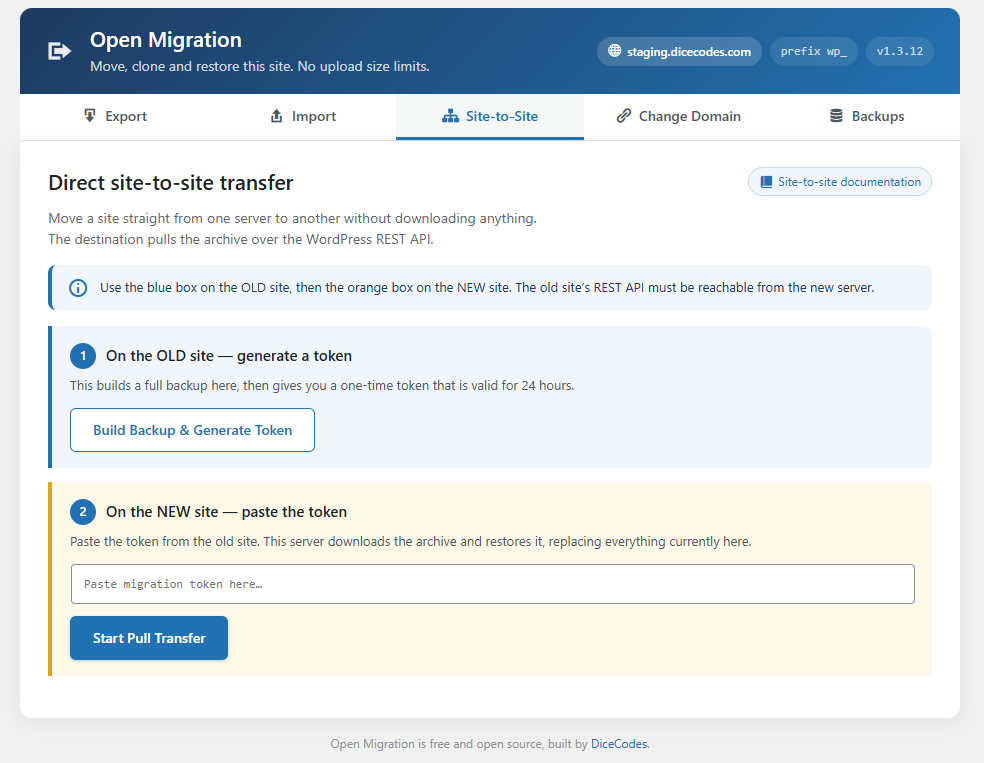
Instead of downloading and re-uploading an archive, the source site can issue a one-time token. The destination pulls the archive directly over the WordPress REST API and then runs the same automatic conversion.
- On the old site Open Site-to-Site and click Build Backup & Generate Token. The export runs to completion first, then a token valid for 24 hours is produced. Copy it.
- On the new site Paste the token and click Start Pull Transfer.
The old site's REST API must be reachable from the new server for this to work. If it is not, use the Export and Import tabs instead — the result is identical.
Managing backups
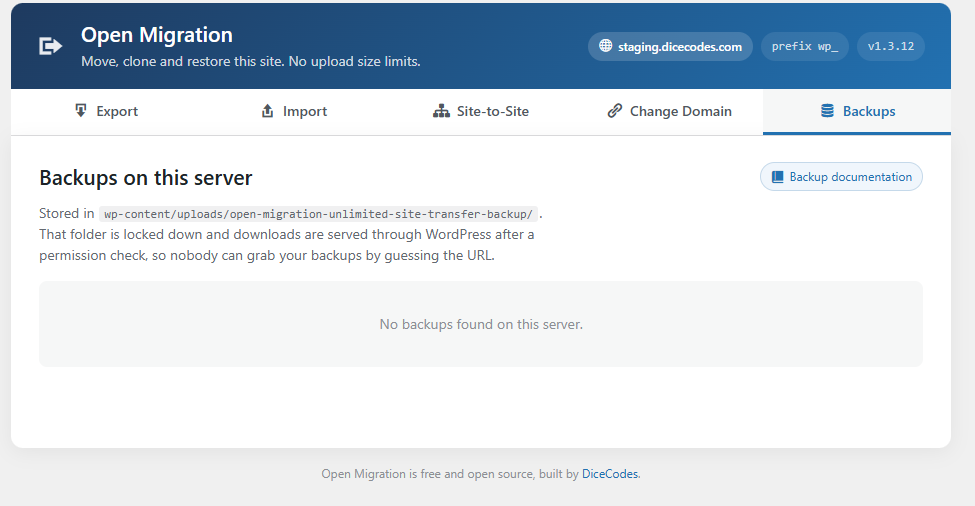
Archives are stored in wp-content/uploads/open-migration-unlimited-site-transfer-backup/. The Backups tab lists
them with their size and date, and lets you download or delete each one.
That folder carries deny-all rules for Apache and IIS plus index files, and archive names
include 32 random characters. More importantly, downloads are streamed through WordPress
only after a capability and nonce check — so the folder never has to be publicly readable,
which is what keeps backups private on Nginx, where .htaccess files are
ignored entirely.
Troubleshooting
The export or import seems to stop partway
Keep the browser tab open and in the foreground. Work happens in short batches driven by the page, so a backgrounded or closed tab pauses it. If it stops for good, check your host's PHP error log and confirm free disk space in the server check.
The site shows the old domain after importing
That is expected if you imported onto a temporary address. Use the Change Domain tab once DNS points at the new server. If the domain is already correct, clear your caching plugin and re-save Permalinks.
Images are missing after migrating
Re-save Permalinks first, then clear any cache. If a specific image is still missing,
confirm it exists under wp-content/uploads/ on the new server — files that
were unreadable at export time are skipped and reported in the export summary.
I cannot log in after the import
Use the original site's username and password. The archive replaced the destination's user accounts. If you have lost them, reset the password from the database or via WP-CLI.
"The PHP ZipArchive extension is required"
Ask your host to enable the PHP zip extension. It is required to create
and read archives, and most hosts enable it on request.
The site-to-site pull fails
The source site's REST API must be publicly reachable from the destination server, and the token expires after 24 hours. Generate a fresh token, or fall back to Export and Import, which produces the same result.
Security & privacy
- Every administrative action requires a valid nonce and the
manage_optionscapability. - Archive entries are validated one by one before extraction, so a crafted
.zipcannot write outsidewp-content. - Backups are streamed through WordPress after a permission check rather than being served as directly reachable files.
- The address entered in Change Domain is fully validated — scheme, hostname and path — instead of being silently corrected into something that merely looks valid.
- No tracking, no analytics, no phone-home. The only outbound requests are to addresses you supply yourself when using site-to-site transfer or the DNS check.
- Nothing is written outside
wp-content/uploads/open-migration-unlimited-site-transfer-backup/, other than the files an archive you chose to restore actually contains.
Frequently asked questions
Is there really no file size limit when importing?
No limit. The archive is sliced into small pieces in the browser and reassembled on the
server, so upload_max_filesize and post_max_size never apply.
The chunk size is chosen automatically from your server's own limits.
Do I need to run a search and replace after migrating?
No. The conversion runs automatically as part of the import and reports how many database rows it changed.
Can I import a site that used a different table prefix?
Yes. The prefix is recorded in the archive and converted during the restore, including the
prefixed keys stored inside the options and usermeta tables.
Does it work with WooCommerce, Elementor and page builders?
Yes. Page builders store absolute URLs and server paths inside serialised data, which is exactly what the serialisation-safe replacement handles. Re-generate your builder's CSS cache afterwards if it looks stale.
Does this work on WordPress multisite?
Not yet. Multisite networks are detected and refused rather than partially migrated, which is safer than a half-completed network migration.
Is it really free, with no paid upgrade?
Yes — GPLv2, open source, no paid tier, no premium extensions, no feature gates and no account. Unlimited file size is included rather than sold separately.
Where are my backups stored?
On your own server, in wp-content/uploads/open-migration-unlimited-site-transfer-backup/. They are never
uploaded anywhere else.